Trail camera season is here, and Command has picked up a lot of new features and improvements since last fall. Some are major additions. Others are simple quality-of-life upgrades that can make managing cameras, reviewing photos, and keeping your setup running a whole lot easier.
There is a good chance you have not found all of them yet.
First things first: update the Command app to the latest version before getting too far into your season. This ensures you are running the most recent, stable, and full-featured version of the app.
From there, here are some of the new and often-overlooked Command features worth checking out.
1. Command AI
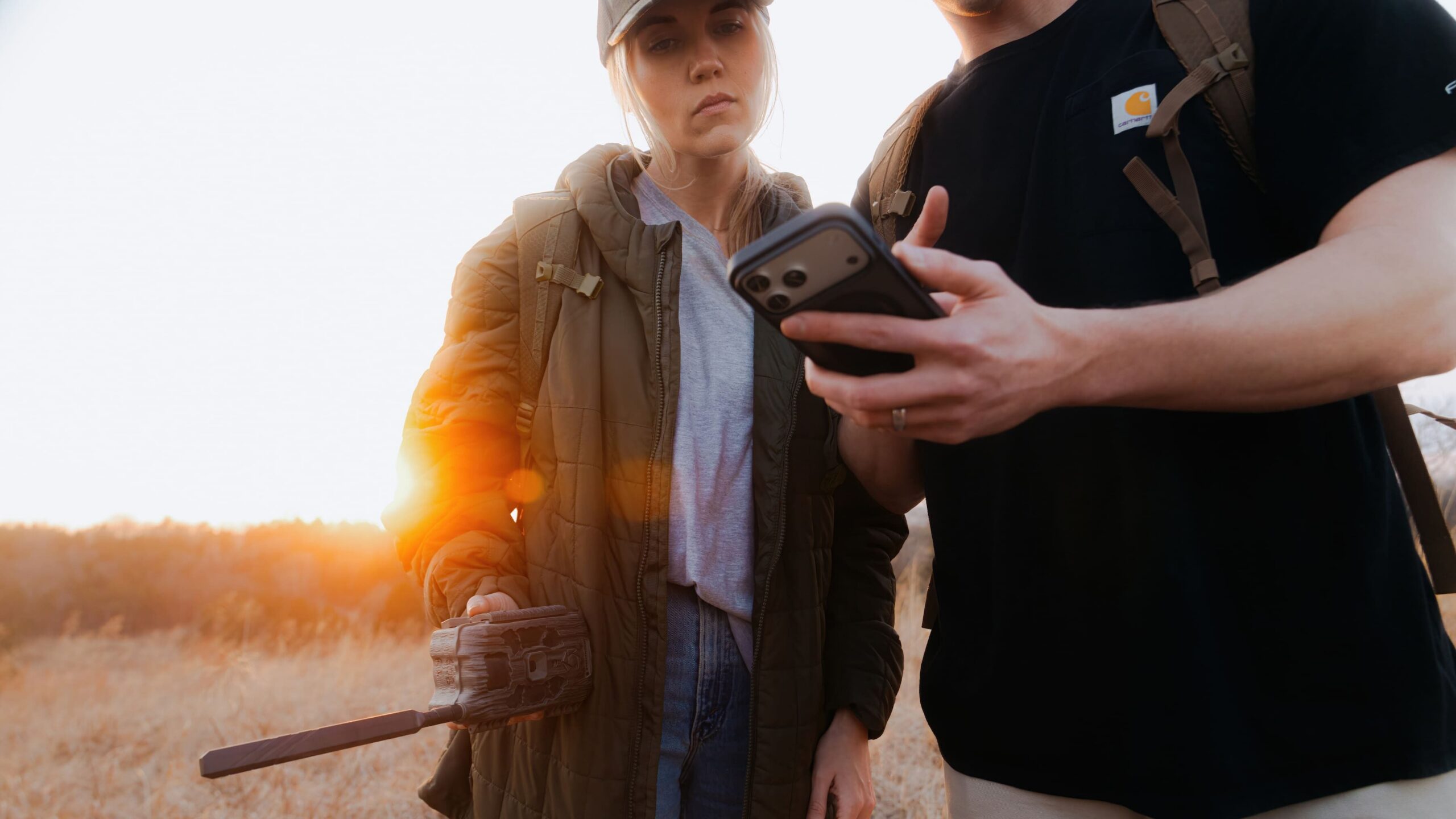
Command AI has been one of the biggest additions to Stealth Cam this season, with new tools designed to help you spend less time sorting through noise and more time looking at what matters.
False Image Detection helps reduce unnecessary uploads by identifying meaningful activity before an image is sent.
PIR Zone Selection lets you exclude problem areas within the camera’s detection zone, such as moving grass, brush, or branches.
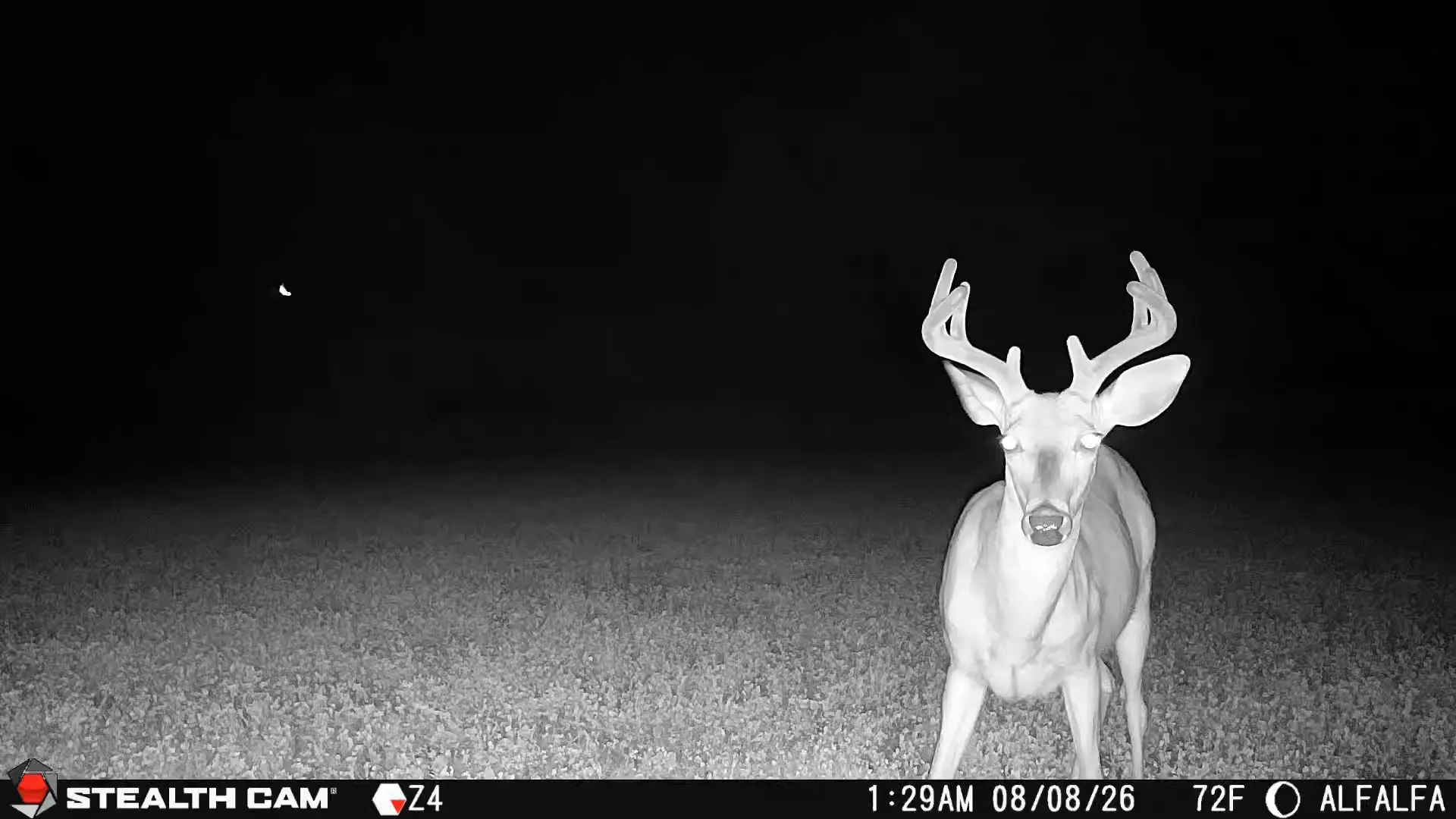
Rack Alert identifies antlered animals and gets that image and notification to you quickly when a buck shows up.
Command AI availability varies by compatible camera model.
2. Save Your Favorite Gallery Filters
Command has long allowed you to filter your gallery by camera group, AI photo tags, time of day, media type, and more. Now you can save those filters and pull them up again whenever you need them.
One of the easiest places to start is an All Bucks filter. Save a filter showing buck-tagged images from every camera on your account, and you have one gallery you can quickly check to see which bucks are showing up across your entire network.
If you organize cameras into groups by property, you can take it even further. Combine a property camera group with the buck filter and save it to quickly see every buck showing up on that property.
For anyone running a lot of cameras, saved filters can make photo review significantly faster.
3. Recover Accidentally Deleted Images
Delete the wrong photo? You have another chance to get it back.
Deleted images now move to the Deleted Media section in Command, where they are retained for up to 30 days from the date they were deleted.
To find it, tap the Profile tab in the bottom-right corner of the app, then select Deleted Media. From there, you can restore an image or permanently delete media you no longer want.
It is a simple addition, but a useful one when a photo disappears with the wrong swipe or tap.
4. Choose Which Cameras Send Notifications
This one has been requested a lot.
Command now gives you more control over camera notifications by allowing you to decide which individual cameras send notifications and which do not.
Instead of treating notifications as an all-or-nothing setting across your account, you can keep alerts turned on for the cameras you care about most while silencing others.
Go to the Profile tab, open Notification Center, and customize notifications by camera.
Running a camera on a busy feeder that sends hundreds of images but still want notifications from a secluded scrape camera? Now you can set them up differently.
5. Get Instant Help With Command AI Support
Need help finding a setting? Troubleshooting a camera? Not sure which settings to use on a new setup?
Tap the chat bubble in the bottom-right corner of Command to access our AI support agent. You can also find it under Profile > Chat Support.
We spent more than a year training the Command support AI to provide useful information about Stealth Cam cameras and the Command app. Ask it where a setting is located, what a feature does, how to troubleshoot an issue, or even which settings might make sense when setting up a camera for the first time.
Instead of digging through menus or searching for an answer, just ask.
6. Change Settings on Multiple Cameras at Once
Running a big network used to mean making the same setting change over and over again.
Not anymore.
When adjusting supported camera settings, you will now see a Multi-Cam toggle. Turn it on, select the cameras you want to update, and apply the setting change across multiple cameras at once.
If you are changing photo settings, detection settings, or another supported option across a group of cameras, Multi-Cam can save a lot of time.
7. Fine-Tune PIR Sensitivity
Most supported camera models now give you more control over PIR Sensitivity.
Open the camera settings and look for PIR Sensitivity, where a slider allows you to adjust how sensitive the camera is to activity within its detection area.
This can be especially helpful when you are dealing with a setup that is triggering more often than you want because of moving grass, changing conditions, or other activity around the camera.
If a camera is firing too often, try dialing the sensitivity back rather than immediately moving the entire setup.
A Few More Features Worth Knowing About
Some of the most useful Command tools are not necessarily new, but they are easy to overlook.
8. Share Your Cameras
You can share camera access with other Command users at no additional charge.
Give friends, family, hunting partners, or fellow lease members either view-only or management access without sharing account credentials.
To get started, tap Share on a camera card from the main Command screen and choose the access you want to provide.
It is an easy way to let everyone who needs the intel see it while keeping control of your own account.
9. DVR Mode
A full SD card or full internal camera storage can stop a camera from capturing new images unless the storage is cleared, formatted, or replaced.
DVR Mode helps prevent that.
With DVR Mode enabled, once the camera’s local storage becomes full, new images begin overwriting the oldest images stored on the SD card or internal memory. From an image-storage standpoint, that allows the camera to keep operating without waiting for you to clear space.
Images that have already uploaded to Command remain stored in the cloud and continue to appear in your gallery. DVR Mode only affects the copies stored locally on the camera.
There is one thing to keep in mind: if an original image or video has already been overwritten on the camera, you may no longer be able to request the full-resolution 4K image or full video file associated with it. How quickly that happens depends on your storage capacity, camera settings, and the number of images your camera captures.
For cameras you plan to leave in the field for long stretches, DVR Mode can provide some valuable peace of mind.
10. Track Bucks with Deer Profile and Buck Scoring (Beta)
Create a Deer Profile for any deer you’re following and keep every image of him in one gallery. Track a buck’s growth from season to season and share him with your hunting party.
Buck Scoring gives you an estimated score class for a buck with one tap. Open an eligible image with one clearly visible buck and tap the Buck Score button. Buck Scoring is in beta and keeps improving as hunters use it. Both features are free for every Command user.
Get Command Ready for Season
The biggest Command additions tend to get the attention, but smaller improvements can have just as much impact once you are running cameras every day.
Save the gallery views you check most. Customize which cameras can interrupt your phone. Use Multi-Cam when your setup needs a change. Turn on DVR Mode for cameras you will not visit often. And if you cannot find something, ask Command AI Support.
Most importantly, make sure you are running the latest version of Command so all of the newest features and performance improvements are available when you need them.
Season comes fast. Get your cameras ready, get them out, and let Command handle more of the small stuff.